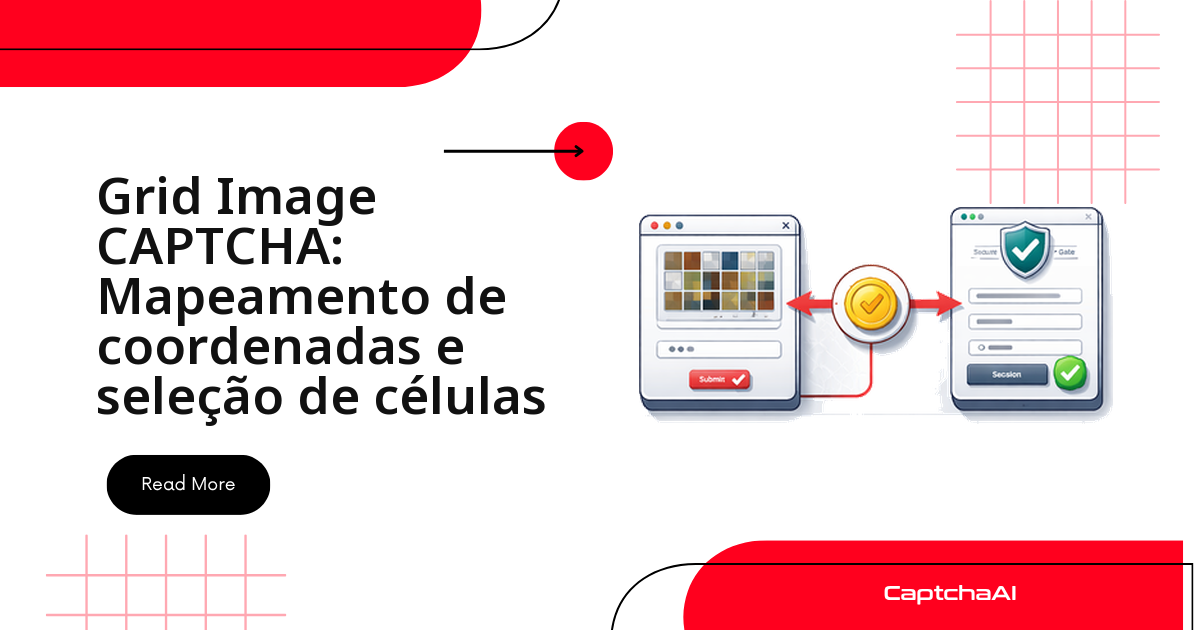
Quando a CaptchaAI resolve um Grid Image CAPTCHA, a resposta chega como uma lista de índices — por exemplo [1, 3, 6, 9] — não como coordenadas de clique prontas. Cabe à sua automação converter cada índice em um ponto (x, y) na grade renderizada e clicar no lugar certo. Este tutorial cobre o fluxo completo, em Python com Selenium e em JavaScript com Puppeteer, incluindo grades dinâmicas que trocam de blocos a cada rodada.
Neste guia:
- Capture a grade e a instrução do desafio a partir do iframe do reCAPTCHA v2.
- Envie a grade para a API da CaptchaAI e receba os índices das células certas.
- Converta os índices em coordenadas (x, y) dentro da grade renderizada.
- Clique nas células com Selenium ou Puppeteer e trate grades que mudam entre rodadas.
Passo 1: capturar a imagem da grade e a instrução do desafio
O desafio de imagens do reCAPTCHA v2 carrega dentro do seu próprio iframe, então a automação precisa trocar de contexto antes de capturar qualquer coisa. A grade não tem URL pública — a saída é tirar um screenshot do elemento <img> renderizado, codificá-lo em base64 e ler junto a instrução (ex.: "Selecione todos os quadrados com semáforos") e a classe CSS que indica o tamanho da grade:
3×3 Grid:          4×4 Grid:
1  2  3            1   2   3   4
4  5  6            5   6   7   8
7  8  9            9  10  11  12
                   13  14  15  16
- As células seguem a ordem de leitura do português — esquerda para direita, de cima para baixo —, célula 1 no canto superior esquerdo.
- Um
grid_sizeerrado (3x3enviado para uma grade4x4, ou o contrário) faz a CaptchaAI interpretar mal os índices e a automação clicar nos blocos errados.
Python (Selenium)
import base64
from selenium import webdriver
from selenium.webdriver.common.by import By
from selenium.webdriver.support.ui import WebDriverWait
from selenium.webdriver.support import expected_conditions as EC

driver = webdriver.Chrome()
driver.get("https://example.com/form")

# Wait for reCAPTCHA iframe
WebDriverWait(driver, 10).until(
    EC.presence_of_element_located((By.CSS_SELECTOR, "iframe[src*='recaptcha']"))
)

# Switch to challenge iframe
iframes = driver.find_elements(By.CSS_SELECTOR, "iframe[src*='recaptcha']")
challenge_iframe = iframes[-1]  # Challenge iframe is typically the last one
driver.switch_to.frame(challenge_iframe)

# Get the grid image
grid_img = driver.find_element(By.CSS_SELECTOR, "img.rc-image-tile-33, img.rc-image-tile-44")
img_src = grid_img.get_attribute("src")

# Get instruction text
instruction = driver.find_element(
    By.CSS_SELECTOR, ".rc-imageselect-desc-wrapper"
).text
print(f"Instruction: {instruction}")

# Screenshot the grid as base64
img_b64 = grid_img.screenshot_as_base64

# Determine grid size
classes = grid_img.get_attribute("class")
grid_size = "4x4" if "44" in classes else "3x3"
print(f"Grid size: {grid_size}")

driver.switch_to.default_content()
JavaScript (Puppeteer)
O mesmo padrão vale em JavaScript: a diferença é que o Puppeteer já expõe frame.screenshot() diretamente a partir do elemento, sem precisar de uma troca explícita de contexto de captura.
const puppeteer = require('puppeteer');
const fs = require('fs');

const browser = await puppeteer.launch({ headless: false });
const page = await browser.newPage();
await page.goto('https://example.com/form');

// Find the challenge iframe
const frames = page.frames();
const challengeFrame = frames.find(f => f.url().includes('recaptcha'));

// Get instruction
const instruction = await challengeFrame.$eval(
  '.rc-imageselect-desc-wrapper',
  el => el.textContent.trim()
);

// Screenshot the grid image
const gridImg = await challengeFrame.$('img.rc-image-tile-33, img.rc-image-tile-44');
const imgBuffer = await gridImg.screenshot();
const imgBase64 = imgBuffer.toString('base64');

// Determine grid size
const className = await challengeFrame.$eval(
  'img.rc-image-tile-33, img.rc-image-tile-44',
  el => el.className
);
const gridSize = className.includes('44') ? '4x4' : '3x3';
console.log(`Grid: ${gridSize}, Instruction: ${instruction}`);
Passo 2: enviar a grade para a API da CaptchaAI
Extraia a palavra-chave da instrução por regex — "traffic lights" a partir de "Select all images with traffic lights" — e envie a imagem ao endpoint in.php com grid_size, img_type e o texto em instructions. O polling começa 5 s após o envio e se repete a cada 5 s, por até 20 tentativas.
Cada envio ocupa uma thread do seu plano CaptchaAI enquanto aguarda a resposta. Mesmo o plano BASIC (US$ 15/mês, 5 threads) processa até 5 grades em paralelo sem formar fila.
import requests
import time
import json

API_KEY = "YOUR_API_KEY"

# Parse the instruction to a simple keyword
# "Select all images with traffic lights" → "traffic lights"
import re
keyword_match = re.search(r'(?:with|of|containing)\s+(.+?)\.?$', instruction, re.I)
keyword = keyword_match.group(1) if keyword_match else instruction

# Submit
with open("/tmp/grid.png", "wb") as f:
    f.write(base64.b64decode(img_b64))

with open("/tmp/grid.png", "rb") as f:
    resp = requests.post("https://ocr.captchaai.com/in.php",
        files={"file": f},
        data={
            "key": API_KEY,
            "method": "post",
            "grid_size": grid_size,
            "img_type": "recaptcha",
            "instructions": keyword,
            "json": "1",
        }
    ).json()

if resp["status"] != 1:
    raise Exception(f"Submit error: {resp['request']}")

task_id = resp["request"]

# Poll
for _ in range(20):
    time.sleep(5)
    result = requests.get("https://ocr.captchaai.com/res.php", params={
        "key": API_KEY, "action": "get", "id": task_id, "json": "1"
    }).json()

    if result["status"] == 1:
        cells = json.loads(result["request"])
        print(f"Cells to click: {cells}")  # e.g., [1, 3, 6, 9]
        break
    if result["request"] != "CAPCHA_NOT_READY":
        raise Exception(f"Error: {result['request']}")
Passo 3: converter os índices de célula em coordenadas de clique
A resposta da CaptchaAI traz apenas os números das células, sempre com índice iniciando em 1 — cabe à sua automação transformar cada índice em um ponto (x, y) dentro da grade renderizada. A conta é direta: divida a largura e a altura do elemento pelo número de colunas e linhas (3 ou 4), calcule a linha e a coluna do índice e pegue o centro daquela célula. Nunca fixe a largura e a altura da grade no código — leia as dimensões reais do elemento na página, porque o layout muda conforme o zoom e a resolução de tela do navegador usado no teste.
def cell_to_coordinates(cell_index, grid_size, grid_width, grid_height):
    """Convert a 1-based cell index to (x, y) center coordinates."""
    if grid_size == "3x3":
        cols, rows = 3, 3
    else:
        cols, rows = 4, 4

    cell_w = grid_width / cols
    cell_h = grid_height / rows

    # Convert 1-based index to 0-based row/col
    idx = cell_index - 1
    col = idx % cols
    row = idx // cols

    # Center of the cell
    x = col * cell_w + cell_w / 2
    y = row * cell_h + cell_h / 2

    return int(x), int(y)

# Example: grid is 300×300
for cell in cells:
    x, y = cell_to_coordinates(cell, grid_size, 300, 300)
    print(f"Cell {cell} → ({x}, {y})")
Para uma grade 3×3 de 300×300 pixels, a função devolve:
Cell 1 → (50, 50)
Cell 3 → (250, 50)
Cell 6 → (250, 150)
Cell 9 → (250, 250)
Passo 4: clicar nas células certas
Com as coordenadas já calculadas, simule o clique em cada célula e finalize clicando no botão de verificação do desafio. No Selenium, use ActionChains com deslocamento a partir do centro do elemento da grade; no Puppeteer, é mais direto navegar pela tabela table.rc-imageselect-table e clicar no <td> correspondente à linha e coluna calculadas.
Selenium
from selenium.webdriver.common.action_chains import ActionChains

driver.switch_to.frame(challenge_iframe)

# Get grid element position and size
grid_el = driver.find_element(By.CSS_SELECTOR, ".rc-imageselect-target")
grid_rect = grid_el.rect
grid_w = grid_rect["width"]
grid_h = grid_rect["height"]

actions = ActionChains(driver)

for cell in cells:
    x, y = cell_to_coordinates(cell, grid_size, grid_w, grid_h)
    # Click relative to grid element's top-left corner
    actions.move_to_element_with_offset(
        grid_el,
        x - grid_w / 2,  # offset from center
        y - grid_h / 2
    ).click()

actions.perform()

# Click verify
verify_btn = driver.find_element(By.ID, "recaptcha-verify-button")
verify_btn.click()

driver.switch_to.default_content()
Puppeteer
A pausa de 200 ms entre cliques ajuda a registrar cada seleção antes da próxima, evitando disparar uma nova validação do desafio cedo demais.
// Click each cell by index
const tableRows = await challengeFrame.$$('table.rc-imageselect-table tr');
for (const cellIdx of cells) {
  const row = Math.floor((cellIdx - 1) / (gridSize === '4x4' ? 4 : 3));
  const col = (cellIdx - 1) % (gridSize === '4x4' ? 4 : 3);
  const cell = (await tableRows[row].$$('td'))[col];
  await cell.click();
  await new Promise(r => setTimeout(r, 200));
}

await challengeFrame.click('#recaptcha-verify-button');
Problemas comuns e como corrigir
A maioria dos erros cai em duas categorias: o tamanho de grade não bate com o que a página mostra, ou as coordenadas não correspondem às dimensões reais do elemento.
| Problema | Causa provável | Correção |
|---|---|---|
| Células erradas | grid_size não bate com a grade exibida |
Confirme 3×3 ou 4×4 antes de montar a requisição |
| Cliques fora da célula | Largura/altura erradas no cálculo | Leia grid_el.rect (Selenium) ou o bounding box (Puppeteer) no momento do clique |
ERROR_WRONG_FILE_EXTENSION |
Formato de imagem não suportado | Envie PNG ou JPEG, nunca WEBP ou BMP |
| Novos blocos após o clique | Grade dinâmica do reCAPTCHA v2 | Trate a rodada como um novo desafio |
CAPCHA_NOT_READY por muito tempo |
Fila no solver ou timeout curto demais | Aumente para 20–25 tentativas de polling |
Antes de investigar mais, registre a resposta bruta em JSON do
res.php— a maioria desses erros fica óbvia ao comparar ogrid_sizeenviado com o que a página realmente mostrava na captura.
Grades dinâmicas: quando o reCAPTCHA troca os blocos
Isso é comum em grades reCAPTCHA v2 com a lógica "clique e substitua": ao marcar uma célula correta, o desafio troca o bloco por uma imagem nova e espera outra seleção, repetindo até não haver mais correspondências. Um pipeline de QA típico — com workers na região sa-east-1 da AWS para reduzir a latência até o formulário de teste — deve tratar cada rodada como um novo desafio: recapturar, reenviar e clicar de novo.
Se a automação salva capturas de tela para depuração, trate esses arquivos como dados potencialmente sensíveis sob a LGPD: mantenha-os em ambiente de staging, com retenção curta e acesso restrito à equipe de QA.
def solve_with_dynamic_tiles(driver, api_key, max_rounds=3):
    for round_num in range(max_rounds):
        driver.switch_to.frame(challenge_iframe)

        # Re-capture grid and instruction
        img_b64 = driver.find_element(
            By.CSS_SELECTOR, "img.rc-image-tile-33"
        ).screenshot_as_base64

        # Submit and get cells (same as above)
        cells = submit_and_poll(api_key, img_b64, "3x3", keyword)

        if not cells:
            break

        # Click cells
        click_cells(driver, cells, "3x3")

        # Click verify
        driver.find_element(By.ID, "recaptcha-verify-button").click()

        driver.switch_to.default_content()
        time.sleep(2)

        # Check if solved (no more challenge iframe)
        try:
            driver.switch_to.frame(challenge_iframe)
            driver.switch_to.default_content()
        except Exception:
            return True  # Solved

    return False
Três rodadas costumam bastar para esvaziar a lista de correspondências. Se o desafio insistir depois disso, é mais seguro reiniciar o fluxo do zero do que repetir indefinidamente.
Perguntas frequentes
O CaptchaAI resolve grades 4×4, ou só 3×3?
Sim. Informe grid_size=4x4 na requisição — a resposta usa índices de 1 a 16, na mesma ordem de leitura das grades 3×3.
Preciso indicar o tamanho da grade manualmente?
Sim, a API não detecta sozinha. Leia a classe CSS do elemento (rc-image-tile-33 ou rc-image-tile-44) na captura e envie o valor certo em grid_size.
Por que a CaptchaAI às vezes devolve menos células do que eu esperava?
Porque a grade pode ter menos correspondências reais para a instrução — a resposta reflete só os blocos que batem com o critério. Se parecer errado, confira a instrução extraída antes de enviar.
Como melhorar a precisão do mapeamento de coordenadas?
Leia a largura e a altura do elemento em tempo real, em vez de valores fixos no código, e envie a imagem original sem cortes ou compressão — isso resolve a maioria dos cliques fora do lugar.
Comece a resolver Grid Image CAPTCHA com a CaptchaAI
Crie sua conta e pegue sua chave de API em captchaai.com — o plano BASIC (US$ 15/mês, 5 threads) já é suficiente para testar o fluxo completo antes de escalar.